Introduction: Why Your URL Structure Matters More Than You Think
Most beginners spend hours perfecting their content and completely ignore their URLs.
That’s a big mistake.
Your URL is one of the first things Google reads when deciding how to rank your page. It’s also the first thing a real human sees before they click on your link.
A clean, SEO-friendly URL tells both Google and your readers exactly what your page is about — in just a few words.
In this guide, you’ll learn every SEO-friendly URL best practice you need to know. Whether you’re a blogger, freelancer, entrepreneur, or just starting your first website, these tips will help you rank higher, get more clicks, and build a stronger online presence.
Let’s dive in.
This guide is part of our SEO category, where you’ll find tutorials on keyword research, technical SEO, internal linking, and growing organic traffic.
What Is an SEO-Friendly URL?
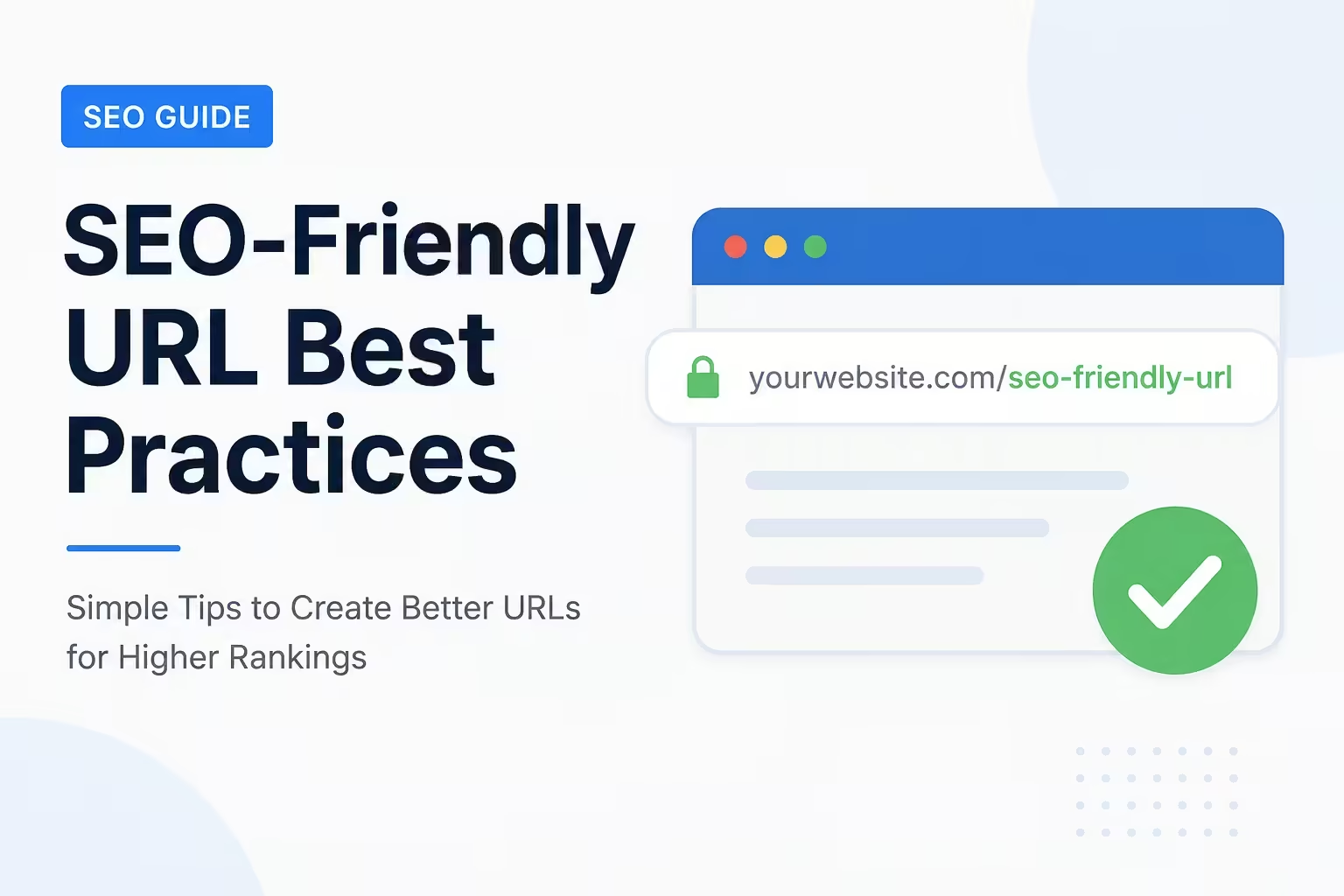
An SEO-friendly URL is a web address that is easy to read, understand, and index by search engines.
Think of it like a book title. A good book title tells you exactly what’s inside. A bad book title leaves you confused.
Here’s a quick comparison:
Not SEO-friendly:
www.mysite.com/p=1247?cat=34&ref=blog
SEO-friendly:
www.mysite.com/seo-friendly-url-best-practices
See the difference? The second URL is clean, readable, and tells you (and Google) exactly what the page is about.
Why SEO-Friendly URLs Are Important for Rankings
Before we get into the best practices, let’s understand why this matters.
Here’s what a good URL does for your website:
- Improves click-through rates — People are more likely to click on a link they understand
- Helps Google crawl your site faster — Clear URLs make it easier for search engine bots to index your content
- Boosts your keyword relevance — Including your target keyword in the URL sends a ranking signal to Google
- Builds trust with users — A clean URL looks professional and safe to click
- Makes sharing easier — A short, clear URL is easier to copy, paste, and share on social media
According to multiple SEO studies, URL structure is one of the top on-page SEO factors. It’s not the biggest ranking factor, but it adds up — especially when combined with great content and backlinks.
SEO-Friendly URL Best Practices You Should Follow Today
1. Always Include Your Target Keyword in the URL
This is the most important rule.
Your primary keyword should appear in your URL — and it should appear as early as possible.
Example:
If your blog post is targeting the keyword “make money blogging,” your URL should look like:
www.yourblog.com/make-money-blogging
Not:
www.yourblog.com/post-2024-june-tips-for-beginners
The keyword in the URL helps Google understand your page’s topic. It also shows up in bold in search results when it matches what someone searched for — which increases your click-through rate.
Quick tip: Don’t stuff multiple keywords into one URL. Pick one main keyword and use it cleanly.
2. Keep Your URLs Short and Simple
Shorter URLs tend to rank better.
A study by Backlinko found that short URLs consistently outperform long URLs in Google search results.
The sweet spot? Aim for 50–60 characters or fewer.
Here’s why short URLs work:
- They’re easier to remember
- They look cleaner when shared in emails or on social media
- They’re less likely to get truncated in search results
- They’re easier for Google to crawl and categorize
Example of a short, clean URL:
www.yoursite.com/freelance-writing-tips
Example of a URL that’s too long:
www.yoursite.com/the-best-freelance-writing-tips-for-beginners-in-2024-and-beyond
Cut the fluff. Get to the point.
3. Use Hyphens, Not Underscores
This one trips up a lot of beginners.
Always use hyphens (-) to separate words in your URL. Never use underscores (_).
Correct: www.yoursite.com/seo-tips-for-beginners
Incorrect: www.yoursite.com/seo_tips_for_beginners
Here’s why this matters: Google treats hyphens as word separators. So “seo-tips-for-beginners” is read as four separate words. But underscores are not treated the same way, which means Google might read “seo_tips_for_beginners” as one long, confusing word.
This is a small change that makes a real difference.
4. Use Lowercase Letters Only
Always write your URLs in lowercase.
URLs are case-sensitive on many servers. This means www.yoursite.com/SEO-Tips and www.yoursite.com/seo-tips could be treated as two different pages.
This causes duplicate content issues, which can hurt your rankings.
Always use lowercase to avoid this problem:
www.yoursite.com/seo-tips-for-beginners ✅
5. Remove Stop Words to Keep URLs Clean
Stop words are small, common words that add length without adding meaning.
Examples of stop words: a, an, the, and, or, but, in, on, of, for, with
Before removing stop words:
www.yoursite.com/the-best-tips-for-seo-for-beginners
After removing stop words:
www.yoursite.com/best-seo-tips-beginners
The second version is shorter, cleaner, and still clearly tells Google and readers what the page is about.
Note: Don’t always remove every stop word. If removing one makes the URL hard to read, keep it. Readability matters too.
6. Use a Logical Folder Structure
Your URL structure should mirror your website structure.
This is called a URL hierarchy or site architecture, and it helps Google understand how your content is organized.
Here’s a good example for a blog about making money online:
www.yoursite.com/blogging/seo-tipswww.yoursite.com/freelancing/how-to-find-clientswww.yoursite.com/affiliate-marketing/best-programs-for-beginners
Each URL tells Google the category and the specific topic of the page.
Avoid deep nesting. Try not to go more than three levels deep:
- Level 1: Domain (
yoursite.com) - Level 2: Category (
/blogging/) - Level 3: Page (
/seo-tips)
Going deeper than three levels can confuse search engines and make your site harder to navigate.
7. Avoid Dynamic URLs With Random Parameters
Dynamic URLs are automatically generated by platforms or databases. They often look like this:
www.yoursite.com/?p=4821&cat=12&session=abc123
These URLs are terrible for SEO because:
- They contain no keywords
- They’re impossible for humans to read
- They can create duplicate content issues
- They’re hard for Google to crawl efficiently
If you’re using WordPress, make sure your permalinks are set to “Post Name” in Settings > Permalinks. This automatically creates clean, readable URLs.
8. Make Every URL Unique
Each page on your website should have its own unique URL.
Never publish two pages with the same URL or very similar URLs. This creates duplicate content, which confuses Google and splits your ranking power between two pages instead of concentrating it on one.
Also, avoid creating multiple versions of the same URL like:
www.yoursite.com/seo-tipshttp://yoursite.com/seo-tipsyoursite.com/seo-tips
Use a canonical tag or set up 301 redirects to make sure all versions of a URL point to one single, preferred version.
9. Use HTTPS, Not HTTP
This isn’t just a URL tip — it’s a security and ranking requirement.
Google confirmed that HTTPS is a ranking signal. Websites without SSL certificates (which enable HTTPS) may rank lower than those with it.
HTTPS also shows a padlock icon in the browser, which builds trust with visitors.
How to get HTTPS:
- Most hosting providers offer free SSL certificates through Let’s Encrypt
- If you’re on WordPress, your hosting dashboard usually has a one-click SSL setup
If your site still shows http://, fix this immediately.
10. Don’t Change URLs Without a 301 Redirect
This is a warning most beginners learn the hard way.
Once your page is indexed by Google and getting traffic, never change the URL without setting up a 301 redirect.
A 301 redirect tells Google: “This page has permanently moved to a new URL. Transfer all the ranking power to the new address.”
Without a redirect, you’ll lose all your hard-earned rankings and backlinks overnight.
When you should change a URL:
- The old URL contains a year that’s now outdated (e.g.,
/seo-tips-2019/) - The old URL is too long or confusing
- You’re rebranding or restructuring your site
When you should NOT change a URL:
- Your page is already ranking well
- You just want to make a minor tweak
- You don’t have time to set up proper redirects
If you must change a URL, set up the 301 redirect before making the change live.
11. Avoid Dates in URLs When Possible
Adding a date to your URL like /2024/06/seo-tips might seem organized, but it can actually hurt you.
Here’s why:
- Your content looks outdated even if you’ve updated it
- People are less likely to click on older-dated content
- You lose the flexibility to refresh and reuse the URL
Instead, use timeless, evergreen URLs:
With date (not ideal): www.yoursite.com/2023/seo-tips-for-beginners
Evergreen (much better): www.yoursite.com/seo-tips-for-beginners
The evergreen version will still be relevant and valuable five years from now.
12. Keep Subdomains Simple
If you use subdomains (like blog.yoursite.com or shop.yoursite.com), keep them short and logical.
Google typically treats subdomains as separate websites, which means they don’t automatically inherit the domain authority of your main site.
For most beginners and bloggers, it’s better to use subdirectories instead:
- Subdomain:
blog.yoursite.com/seo-tips(Google may treat this as a separate site) - Subdirectory:
www.yoursite.com/blog/seo-tips(Google sees this as part of your main site)
Using subdirectories helps consolidate your domain authority and makes it easier to rank your content.
Common URL Mistakes to Avoid
Here’s a quick summary of the biggest URL mistakes beginners make:
- Using random numbers or IDs instead of keywords
- Making URLs too long and complex
- Using uppercase letters
- Using underscores instead of hyphens
- Including special characters like !, @, #, $
- Changing URLs without redirects
- Using session IDs or tracking parameters in the URL
- Ignoring HTTPS
Avoid these mistakes, and you’ll already be ahead of most websites online.
Quick URL Checklist Before You Publish
Use this checklist every time you publish a new page or blog post:
- Does the URL include my primary keyword?
- Is the URL short (under 60 characters)?
- Are all words separated by hyphens?
- Is the URL in lowercase?
- Have I removed unnecessary stop words?
- Is the URL unique and different from all other pages on my site?
- Am I using HTTPS?
- Does the URL fit within a logical folder/category structure?
If you can check every box, your URL is ready to go.
Conclusion: Start Using SEO-Friendly URL Best Practices Today
Your URL is one of the simplest and most powerful SEO tools you have.
By following these SEO-friendly URL best practices, you send clear signals to Google about what your content covers. You also give your readers a reason to trust and click your links.
The best part? Most of these tips take less than 60 seconds to implement.
Start with the basics: include your keyword, use hyphens, keep it short, and go lowercase. Then build from there.
Whether you’re building a blog, a freelance portfolio, an e-commerce store, or an affiliate website, your URL structure is the foundation everything else is built on. Get it right from the start, and your entire SEO strategy becomes stronger.
Take five minutes right now to audit your current URLs and fix any issues you find. Your future Google rankings will thank you.
Frequently Asked Questions (FAQs)
Q1: What is the ideal length for an SEO-friendly URL?
The ideal URL length is between 50 and 60 characters. Shorter URLs tend to perform better in search rankings and are easier for users to read and share.
Q2: Should I include the year in my blog post URL?
Generally, no. Avoid putting dates in URLs because your content can appear outdated even if you’ve updated it recently. Use evergreen URLs without dates for better long-term performance.
Q3: Does changing a URL affect my Google rankings?
Yes, significantly. Changing a URL without setting up a 301 redirect will cause you to lose your existing rankings and any backlinks pointing to that page. Always set up a redirect before changing a live URL.
Q4: Can I use numbers in my URLs?
Yes, numbers are fine if they’re meaningful — like www.yoursite.com/10-seo-tips. Avoid random auto-generated numbers like ?p=4821, which have no SEO value.
Q5: Is the URL a direct Google ranking factor?
Yes, but it’s a minor one. URL structure is part of on-page SEO and sends relevancy signals to Google. It works best when combined with strong content, good page speed, backlinks, and other SEO factors.
Q6: Should I use www or non-www in my URL?
It doesn’t matter for SEO — just pick one and be consistent. Make sure all versions of your URL (with and without www) redirect to your chosen version to avoid duplicate content.
Q7: What happens if two pages on my site have very similar URLs?
This can create a duplicate content problem, which confuses Google and splits your ranking power. Make sure every page has a unique, descriptive URL and use canonical tags when needed.
Q8: How do I fix bad URLs on an existing website?
Audit your current URLs using a tool like Screaming Frog or Google Search Console. Identify problem URLs, create better versions, then set up 301 redirects from the old URLs to the new ones. Do this carefully to avoid losing rankings.
Recommended posts:
- Passive Income Ideas Through Blogging: The Beginner’s Complete Guide (2026)
- How Much Money Can You Make from Blogging? (Real Numbers + Honest Advice)
- How Long Does It Take to Make Money Blogging? (Honest Answer)
- Best Blog Monetization Methods for Beginners: How to Make Money Blogging in 2026
- External Linking Best Practices: The Complete Beginner’s Guide to Boosting Your SEO