Introduction: Why Adding a Contact Form Changes Everything
If you have a website and no contact form, you’re leaving money on the table.
Seriously.
Whether you’re a blogger, freelancer, student building a portfolio, or an entrepreneur launching a side hustle — a contact form is one of the first things you need to add to your website.
It looks professional. It builds trust. And it opens the door for clients, sponsors, collaborators, and customers to reach out directly.
The good news? Learning how to add contact forms to your website doesn’t require coding skills or a tech background. In this guide, you’ll learn everything from scratch — step by step, tool by tool — so you can get your contact form live today.
Let’s get started.
Find similar topics in Blogging category.
What Is a Contact Form (And Why Do You Need One)?
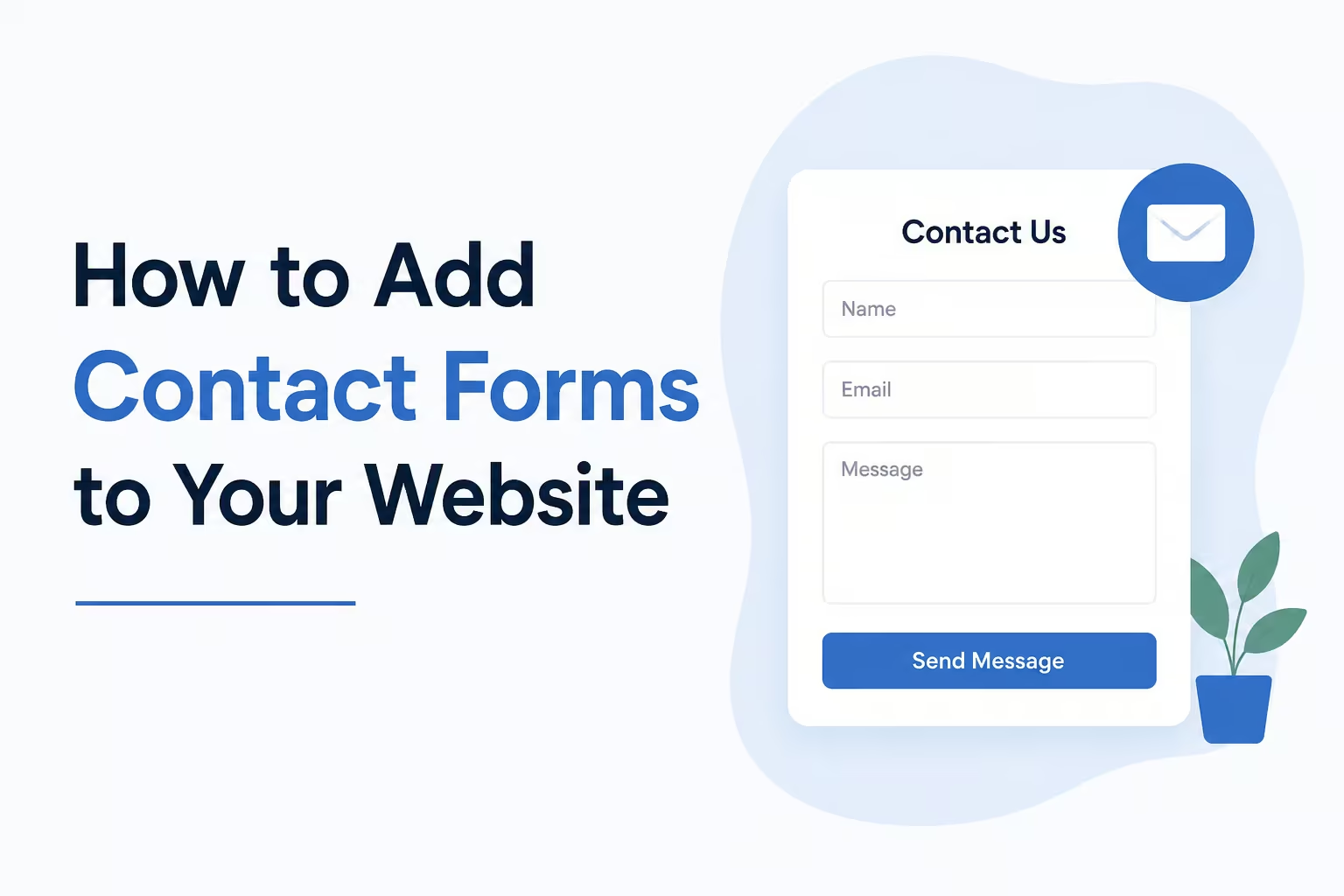
A contact form is a simple online form that lets visitors send you a message without needing to know your email address.
Think of it like a digital mailbox built into your website.
Instead of clicking on an email link (which often opens email apps people don’t use), visitors just:
- Fill in their name
- Type their email
- Write their message
- Hit “Send”
And the message lands directly in your inbox.
Here’s why that matters:
- It protects your email from spam bots
- It looks far more professional than a plain email link
- It keeps your inbox organized
- It increases the chances people will actually contact you
- It helps you capture leads and grow your business
Every successful blogger, freelancer, and online entrepreneur has a contact form. Now it’s your turn.
Types of Contact Forms You Can Add
Before diving into the how-to, it helps to know what type of contact form fits your needs.
1. Simple Contact Form
Just name, email, and message. Perfect for bloggers, students, and beginners.
2. Lead Generation Form
Includes fields like budget, project type, or timeline. Great for freelancers and agencies who want to qualify leads before responding.
3. Booking or Inquiry Form
Used by coaches, consultants, and service providers to collect appointment details upfront.
4. Support or Help Desk Form
For businesses that want to organize customer support requests by category or urgency.
5. Newsletter Signup Form
Collects email addresses to grow your subscriber list. Many email marketing tools make this super easy.
Start with a simple contact form. You can always upgrade later.
How to Add Contact Forms to WordPress (The Easy Way)
WordPress is the most popular website platform in the world — and adding a contact form to it is surprisingly simple.
Here are the best methods:
Method 1: Use WPForms (Recommended for Beginners)
WPForms is the most beginner-friendly contact form plugin for WordPress. It has a drag-and-drop builder, which means no coding at all.
Here’s how to do it:
- Log in to your WordPress dashboard
- Go to Plugins → Add New
- Search for “WPForms”
- Click Install Now, then Activate
- Go to WPForms → Add New
- Choose the “Simple Contact Form” template
- Customize your fields (name, email, message, etc.)
- Click Save
- Copy the shortcode that appears (it looks like this:
[wpforms id="123"]) - Go to the page where you want the form (e.g., your Contact page)
- Paste the shortcode and click Update
Done. Your contact form is live.
WPForms Free vs. Paid:
- Free version is enough for basic contact forms
- Paid version unlocks file uploads, payment forms, and advanced features
Method 2: Use Contact Form 7 (Free and Lightweight)
Contact Form 7 is one of the oldest and most popular free contact form plugins. It’s slightly more technical than WPForms but still beginner-friendly.
Steps to set it up:
- Install and activate Contact Form 7 from the WordPress plugin directory
- Go to Contact → Contact Forms
- A default form is already created — click Edit to customize it
- Adjust the form fields as needed
- Copy the shortcode shown at the top of the page
- Paste it into any page or post
Pro tip: Make sure you configure the “Mail” tab inside Contact Form 7 to set where form submissions are sent.
Method 3: Use Elementor’s Built-In Form Widget
If you’re building your site with Elementor (a popular page builder), you don’t even need a separate plugin.
- Open your page in Elementor
- Drag the Form Widget onto your page
- Add fields, customize colors, and set up email notifications
- Click Publish
This is great if you want your form to match your site design perfectly.
How to Add Contact Forms Without WordPress
Don’t use WordPress? No problem. Here are top options for other platforms.
Google Forms (100% Free, No Website Needed)
Google Forms is a free tool from Google that lets you create any kind of form in minutes.
How to embed a Google Form on your website:
- Go to forms.google.com
- Click the + button to create a new form
- Add your questions (name, email, message, etc.)
- Click the Send button at the top right
- Go to the <> (embed) tab
- Copy the HTML embed code
- Paste it into your website’s HTML editor
Best for: Students, beginners, anyone with a basic website or landing page.
Downside: Google Forms look a bit generic and may not match your brand.
Wix (Drag-and-Drop Form Builder)
If your site is built on Wix, adding a contact form is built right in.
- In your Wix editor, click Add (+) → Contact & Forms → Contact Form
- Drag it to your page
- Customize the fields
- Connect it to your Wix Inbox or email
Easy, fast, and professional-looking.
Squarespace (Built-In Form Blocks)
Squarespace makes it incredibly simple too.
- Click Edit on your page
- Click Add Block → Form
- Customize your fields
- Set up email notifications in the form settings
- Click Save
Webflow
Webflow gives you full design control over forms.
- Add a Form Block element to any page
- Style it however you want
- Set up form submissions to go to your email or a third-party tool like Zapier or Mailchimp
Best Free Tools to Create Contact Forms (Without a Website Builder)
Sometimes you just want a standalone form tool that works anywhere. Here are the best free options:
| Tool | Best For | Free Plan |
|---|---|---|
| WPForms Lite | WordPress users | Yes |
| Google Forms | Beginners, students | Yes |
| Typeform | Stylish, interactive forms | Yes (limited) |
| Jotform | Advanced forms, file uploads | Yes (limited) |
| HubSpot Forms | Lead generation, CRM integration | Yes |
| Formspree | Developers, static websites | Yes |
Formspree is especially handy if you have a plain HTML website. You just add a small piece of code and it handles all form submissions for you — no backend server needed.
What Fields Should Your Contact Form Include?
Less is more. The fewer fields you include, the more people will actually fill out the form.
Must-have fields:
- Full Name
- Email Address
- Message
Optional fields (add based on your needs):
- Phone Number (for service-based businesses)
- Subject or Topic Dropdown (helps you organize messages)
- Budget Range (for freelancers)
- How did you find us? (useful for tracking)
Avoid asking for too much upfront. If someone has to fill in 10 fields just to say hello, they’ll leave without submitting.
How to Make Your Contact Form Actually Work (Technical Setup Tips)
Adding the form is just step one. Here’s how to make sure it works properly:
1. Set Up Email Notifications
Make sure form submissions are sent to an email address you actually check. Most plugins and tools have a notification settings tab.
2. Add a Confirmation Message
After someone submits the form, show a friendly message like: “Thanks! I’ll get back to you within 24 hours.” This reassures users their message was received.
3. Test Your Form
Before going live, submit a test message yourself and make sure it arrives in your inbox.
4. Use a Business Email (Not Gmail)
If possible, connect your form to a professional email like hello@yourwebsite.com. It looks much more trustworthy.
5. Add a CAPTCHA or Spam Filter
Forms attract spam bots. Add Google reCAPTCHA or enable spam filters (WPForms and Contact Form 7 both support this) to keep your inbox clean.
6. Check Your Spam Folder
Sometimes legitimate form submissions land in spam. Check there first if you’re not receiving messages.
How to Design a Contact Form That Gets More Submissions
Design matters more than people think. Here’s how to make your form conversion-friendly:
- Keep it short — 3 fields is ideal for a basic contact form
- Use clear labels — Don’t make people guess what to type
- Make your button stand out — Use a bold color and action text like “Send Message” instead of just “Submit”
- Add trust signals — A short note like “Your information is safe. I never share your data.” can boost conversions
- Mobile-optimize your form — More than half of web traffic is mobile. Make sure your form looks good on small screens
- Place the form above the fold — Don’t make people scroll too far to find it
Where Should You Place Your Contact Form?
Most people just put a contact form on a dedicated “Contact” page — and that’s a great start. But you can go further.
Smart places to add contact forms:
- Contact Page (essential)
- Homepage (especially if you offer a service)
- About Page (visitors who read your story are already warm leads)
- Blog Post CTAs (at the end of relevant posts)
- Footer (a mini form in the footer is always accessible)
- Landing Pages (for specific offers or campaigns)
The more accessible your form is, the more inquiries you’ll receive.
Common Mistakes to Avoid When Adding Contact Forms
Even a small mistake can cost you leads. Watch out for these:
- Not testing the form before publishing
- Using a broken email address in the notification settings
- Too many required fields that scare visitors away
- No success message after submission (leaves people confused)
- Forgetting mobile optimization
- Skipping spam protection (your inbox will get flooded)
- Not responding to messages — if people take time to contact you, reply promptly
How Contact Forms Help You Make Money Online
Here’s the part many beginners overlook: your contact form is a monetization tool.
Here’s how:
- Freelancers receive client inquiries and land paid gigs
- Bloggers get approached by brands for sponsored posts
- Coaches and consultants book discovery calls and sell services
- Affiliate marketers connect with affiliate managers for exclusive deals
- Online store owners handle customer service and increase trust
Every message in your contact form is a potential opportunity. Treat it seriously.
Conclusion: Start Adding Contact Forms Today
Now you know exactly how to add contact forms — whether you’re on WordPress, Wix, Squarespace, or building something from scratch.
It doesn’t matter if you’re a student, a first-time blogger, or an entrepreneur just starting out. A contact form is one of the simplest and most powerful steps you can take to look professional, build relationships, and grow your online presence.
Quick recap of what to do:
- Choose your platform (WordPress, Wix, Squarespace, etc.)
- Pick a form tool (WPForms, Google Forms, Contact Form 7, etc.)
- Keep your form simple (name, email, message is enough)
- Test it before going live
- Place it somewhere visible on your website
The best time to add a contact form was when you first launched your site. The second best time is right now.
Go set it up — you’ve got this.
Frequently Asked Questions (FAQs)
Q1: Can I add a contact form without coding?
Yes, absolutely. Tools like WPForms, Google Forms, Wix, and Squarespace let you create and add contact forms with zero coding knowledge. Just drag, drop, and customize.
Q2: What is the best free contact form plugin for WordPress?
WPForms Lite and Contact Form 7 are both excellent free options for WordPress. WPForms is easier for beginners, while Contact Form 7 is more flexible for those comfortable with basic editing.
Q3: How do I make sure my contact form submissions reach my inbox?
Go into your form settings and confirm the notification email address is correct. Then send a test submission to verify. Also check your spam/junk folder in case messages are being filtered.
Q4: Is Google Forms good for a website contact form?
Google Forms works well for beginners and is completely free. However, it may not match your website’s branding. If design consistency matters to you, use a dedicated form plugin or your website platform’s built-in form tool.
Q5: How many fields should a contact form have?
For most websites, three fields is ideal: Name, Email, and Message. Only add more fields if absolutely necessary. Fewer fields = higher submission rates.
Q6: Can I add a contact form to a free website?
Yes. Platforms like Wix, WordPress.com, and Google Sites allow you to add contact forms even on free plans. You can also use Formspree or Google Forms to embed forms on any simple website.
Q7: Do contact forms protect my email address from spam?
Yes. One of the biggest advantages of using a contact form is that your actual email address is hidden from visitors and spam bots, which significantly reduces unsolicited emails.
Q8: What should I write on my Contact page?
Keep it simple and friendly. Include a brief sentence about what kinds of inquiries you welcome, expected response time, and the form itself. Example: “Have a question or want to work together? Fill out the form below and I’ll get back to you within 48 hours.”
Recommended posts:
- How Much Money Can You Make from Blogging? (Real Numbers + Honest Advice)
- How to Make Your First $100 Blogging (Step-by-Step Guide for Beginners)
- Best Blog Monetization Methods for Beginners: How to Make Money Blogging in 2026
- The Ultimate AI Prompt Writing Guide: How to Get Better Results From Any AI Tool
- Long-Tail Keywords Explained: The Beginner’s Guide to Getting More Traffic in 2026
- Best ChatGPT Prompts for Bloggers: The Ultimate Guide to Writing Faster and Smarter in 2026